この記事は一種の概念実証であり、アカウントを再起動したりログアウトしたりせずに、現在のユーザーのスタート画面にショートカットをプログラムで固定(固定解除)する方法を示しています。ご存知のように、2018年10月10日のWindows 10のリリースにより、Microsoftはスタート画面とタスクバーからショートカットの固定を解除(固定)するためのAPIへのアクセスを静かに閉鎖しました。これ以降、これは手動でのみ実行できます。
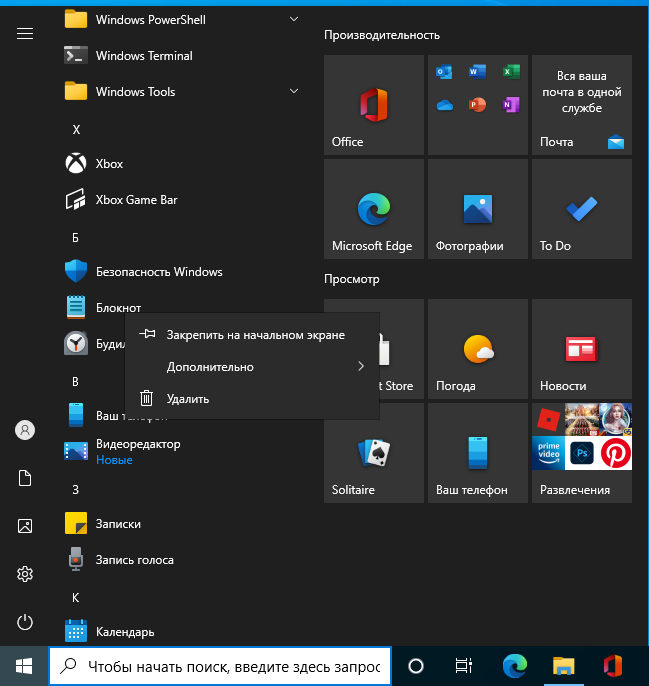
() , - . , , , . , , 51201, « », %SystemRoot%\system32\shell32.dll.

# Extract a localized string from shell32.dll
$Signature = @{
Namespace = "WinAPI"
Name = "GetStr"
Language = "CSharp"
MemberDefinition = @"
[DllImport("kernel32.dll", CharSet = CharSet.Auto)]
public static extern IntPtr GetModuleHandle(string lpModuleName);
[DllImport("user32.dll", CharSet = CharSet.Auto)]
internal static extern int LoadString(IntPtr hInstance, uint uID, StringBuilder lpBuffer, int nBufferMax);
public static string GetString(uint strId)
{
IntPtr intPtr = GetModuleHandle("shell32.dll");
StringBuilder sb = new StringBuilder(255);
LoadString(intPtr, strId, sb, sb.Capacity);
return sb.ToString();
}
"@
}
if (-not ("WinAPI.GetStr" -as [type]))
{
Add-Type @Signature -Using System.Text
}
# Pin to Start: 51201
# Unpin from Start: 51394
$LocalizedString = [WinAPI.GetStr]::GetString(51201)
# Trying to pin the Command Prompt shortcut to Start
$Target = Get-Item -Path "$env:APPDATA\Microsoft\Windows\Start Menu\Programs\System Tools\Command Prompt.lnk"
$Shell = New-Object -ComObject Shell.Application
$Folder = $Shell.NameSpace($Target.DirectoryName)
$file = $Folder.ParseName($Target.Name)
$Verb = $File.Verbs() | Where-Object -FilterScript {$_.Name -eq $LocalizedString}
$Verb.DoIt()
Access is denied. (Exception from HRESULT: 0x80070005 (E_ACCESSDENIED))
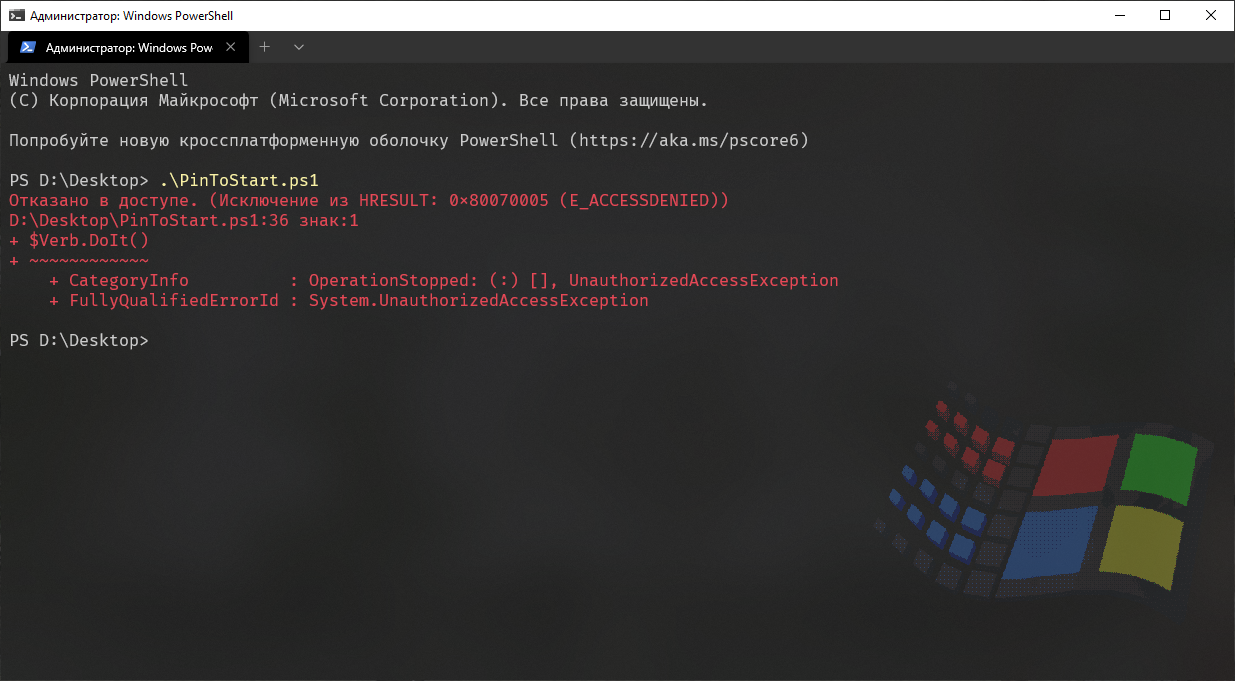
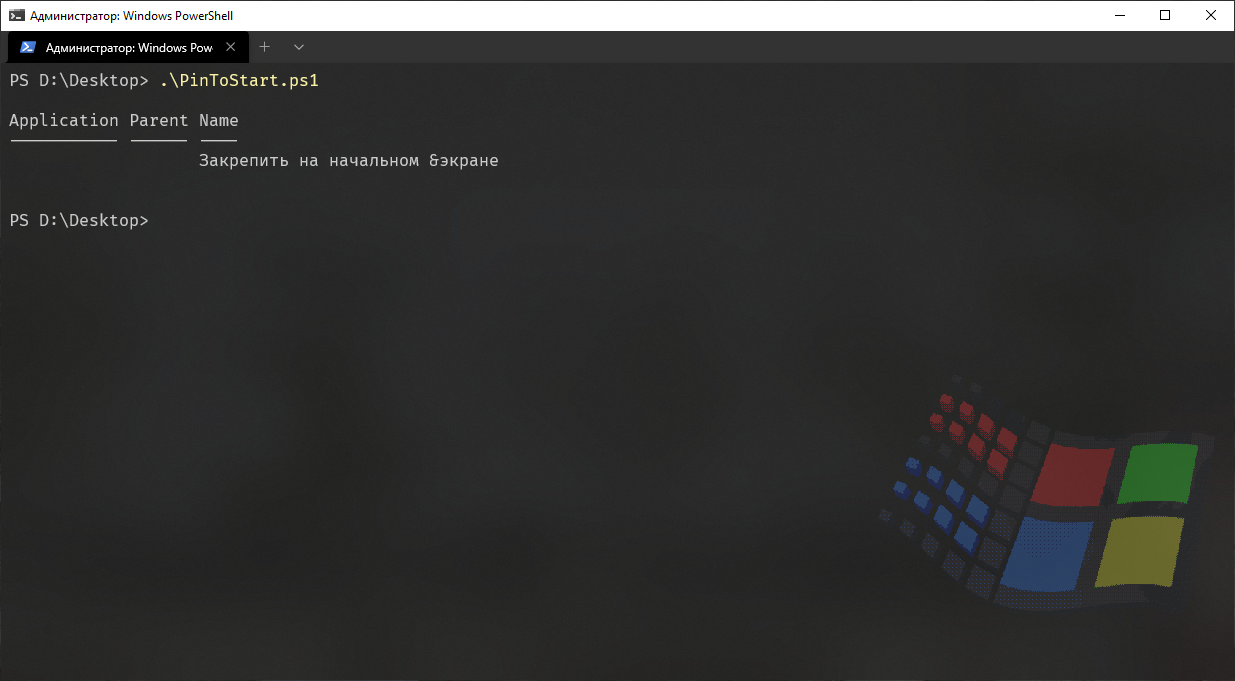
, , API, , « &», .
- , , , Microsoft bloatware. , …
PowerShell- Windows 10 . . . , , , GPO .
, XML. , , : Import-StartLayout -LayoutPath "D:\Layout.xml .
, « » (Prevent users from customizing their Start Screen), XML . , :
;
XML, ( ) ;
ポリシーを使用して、ホーム画面のレイアウトを編集する機能を一時的に無効にします。
「スタート」メニューを再起動します。
プログラムで「スタート」メニューを開き、そのレイアウトがレジストリに保存されるようにします。
ポリシーをオフにして、ホーム画面のレイアウトを編集できるようにします。
そして、もう一度スタートメニューを開きます。
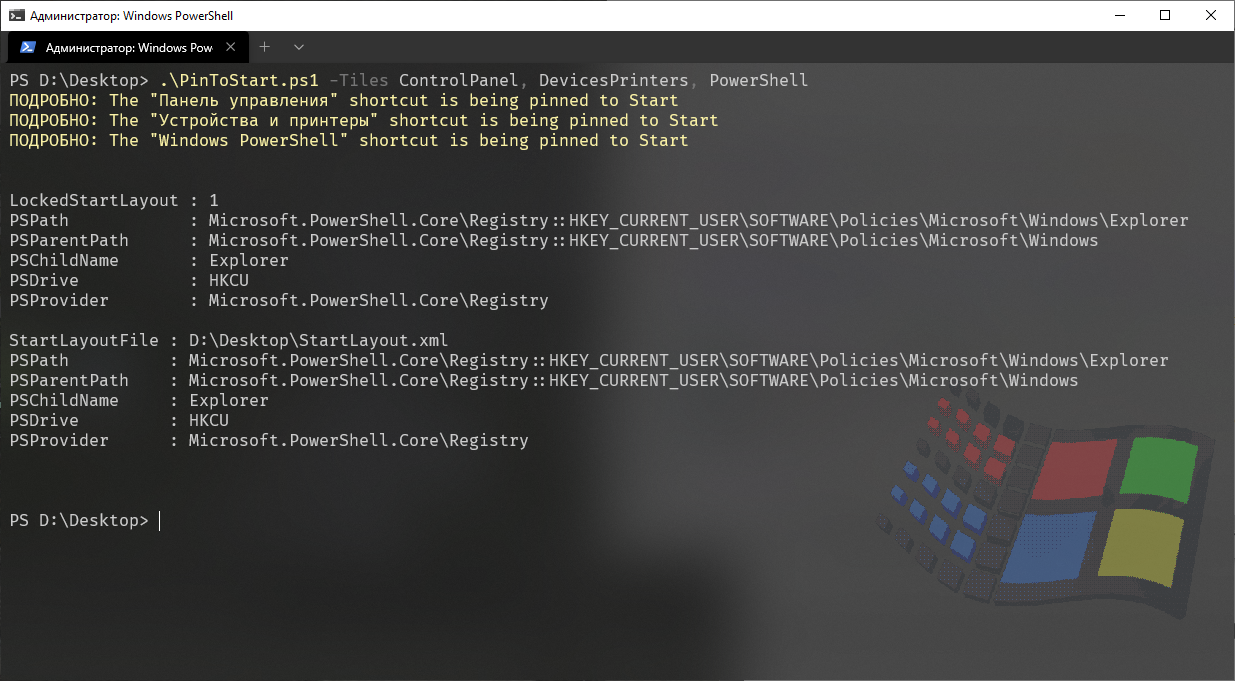
出来上がり!この例では、スタート画面に3つのショートカット(コントロールパネル、デバイスとプリンター、PowerShell)を固定して、その場でスタート画面をカスタマイズしました。

コード全体
<#
.SYNOPSIS
Configure the Start tiles
.PARAMETER ControlPanel
Pin the "Control Panel" shortcut to Start
.PARAMETER DevicesPrinters
Pin the "Devices & Printers" shortcut to Start
.PARAMETER PowerShell
Pin the "Windows PowerShell" shortcut to Start
.PARAMETER UnpinAll
Unpin all the Start tiles
.EXAMPLE
.\Pin.ps1 -Tiles ControlPanel, DevicesPrinters, PowerShell
.EXAMPLE
.\Pin.ps1 -UnpinAll
.EXAMPLE
.\Pin.ps1 -UnpinAll -Tiles ControlPanel, DevicesPrinters, PowerShell
.EXAMPLE
.\Pin.ps1 -UnpinAll -Tiles ControlPanel
.EXAMPLE
.\Pin.ps1 -Tiles ControlPanel -UnpinAll
.LINK
https://github.com/farag2/Windows-10-Sophia-Script
.NOTES
Separate arguments with comma
Current user
#>
[CmdletBinding()]
param
(
[Parameter(
Mandatory = $false,
Position = 0
)]
[switch]
$UnpinAll,
[Parameter(
Mandatory = $false,
Position = 1
)]
[ValidateSet("ControlPanel", "DevicesPrinters", "PowerShell")]
[string[]]
$Tiles,
[string]
$StartLayout = "$PSScriptRoot\StartLayout.xml"
)
begin
{
# Unpin all the Start tiles
if ($UnpinAll)
{
Export-StartLayout -Path $StartLayout -UseDesktopApplicationID
[xml]$XML = Get-Content -Path $StartLayout -Encoding UTF8 -Force
$Groups = $XML.LayoutModificationTemplate.DefaultLayoutOverride.StartLayoutCollection.StartLayout.Group
foreach ($Group in $Groups)
{
# Removing all groups inside XML
$Group.ParentNode.RemoveChild($Group) | Out-Null
}
$XML.Save($StartLayout)
}
}
process
{
# Extract strings from shell32.dll using its' number
$Signature = @{
Namespace = "WinAPI"
Name = "GetStr"
Language = "CSharp"
MemberDefinition = @"
[DllImport("kernel32.dll", CharSet = CharSet.Auto)]
public static extern IntPtr GetModuleHandle(string lpModuleName);
[DllImport("user32.dll", CharSet = CharSet.Auto)]
internal static extern int LoadString(IntPtr hInstance, uint uID, StringBuilder lpBuffer, int nBufferMax);
public static string GetString(uint strId)
{
IntPtr intPtr = GetModuleHandle("shell32.dll");
StringBuilder sb = new StringBuilder(255);
LoadString(intPtr, strId, sb, sb.Capacity);
return sb.ToString();
}
"@
}
if (-not ("WinAPI.GetStr" -as [type]))
{
Add-Type @Signature -Using System.Text
}
# Extract the localized "Devices and Printers" string from shell32.dll
$DevicesPrinters = [WinAPI.GetStr]::GetString(30493)
# We need to get the AppID because it's auto generated
$Script:DevicesPrintersAppID = (Get-StartApps | Where-Object -FilterScript {$_.Name -eq $DevicesPrinters}).AppID
$Parameters = @(
# Control Panel hash table
@{
# Special name for Control Panel
Name = "ControlPanel"
Size = "2x2"
Column = 0
Row = 0
AppID = "Microsoft.Windows.ControlPanel"
},
# "Devices & Printers" hash table
@{
# Special name for "Devices & Printers"
Name = "DevicesPrinters"
Size = "2x2"
Column = 2
Row = 0
AppID = $Script:DevicesPrintersAppID
},
# Windows PowerShell hash table
@{
# Special name for Windows PowerShell
Name = "PowerShell"
Size = "2x2"
Column = 4
Row = 0
AppID = "{1AC14E77-02E7-4E5D-B744-2EB1AE5198B7}\WindowsPowerShell\v1.0\powershell.exe"
}
)
# Valid columns to place tiles in
$ValidColumns = @(0, 2, 4)
[string]$StartLayoutNS = "http://schemas.microsoft.com/Start/2014/StartLayout"
# Add pre-configured hastable to XML
function Add-Tile
{
param
(
[string]
$Size,
[int]
$Column,
[int]
$Row,
[string]
$AppID
)
[string]$elementName = "start:DesktopApplicationTile"
[Xml.XmlElement]$Table = $xml.CreateElement($elementName, $StartLayoutNS)
$Table.SetAttribute("Size", $Size)
$Table.SetAttribute("Column", $Column)
$Table.SetAttribute("Row", $Row)
$Table.SetAttribute("DesktopApplicationID", $AppID)
$Table
}
if (-not (Test-Path -Path $StartLayout))
{
# Export the current Start layout
Export-StartLayout -Path $StartLayout -UseDesktopApplicationID
}
[xml]$XML = Get-Content -Path $StartLayout -Encoding UTF8 -Force
foreach ($Tile in $Tiles)
{
switch ($Tile)
{
ControlPanel
{
$ControlPanel = [WinAPI.GetStr]::GetString(12712)
Write-Verbose -Message ("The `"{0}`" shortcut is being pinned to Start" -f $ControlPanel) -Verbose
}
DevicesPrinters
{
$DevicesPrinters = [WinAPI.GetStr]::GetString(30493)
Write-Verbose -Message ("The `"{0}`" shortcut is being pinned to Start" -f $DevicesPrinters) -Verbose
# Create the old-style "Devices and Printers" shortcut in the Start menu
$Shell = New-Object -ComObject Wscript.Shell
$Shortcut = $Shell.CreateShortcut("$env:APPDATA\Microsoft\Windows\Start menu\Programs\System Tools\$DevicesPrinters.lnk")
$Shortcut.TargetPath = "control"
$Shortcut.Arguments = "printers"
$Shortcut.IconLocation = "$env:SystemRoot\system32\DeviceCenter.dll"
$Shortcut.Save()
Start-Sleep -Seconds 3
}
PowerShell
{
Write-Verbose -Message ("The `"{0}`" shortcut is being pinned to Start" -f "Windows PowerShell") -Verbose
}
}
$Parameter = $Parameters | Where-Object -FilterScript {$_.Name -eq $Tile}
$Group = $XML.LayoutModificationTemplate.DefaultLayoutOverride.StartLayoutCollection.StartLayout.Group | Where-Object -FilterScript {$_.Name -eq "Sophia Script"}
# If the "Sophia Script" group exists in Start
if ($Group)
{
$DesktopApplicationID = ($Parameters | Where-Object -FilterScript {$_.Name -eq $Tile}).AppID
if (-not ($Group.DesktopApplicationTile | Where-Object -FilterScript {$_.DesktopApplicationID -eq $DesktopApplicationID}))
{
# Calculate current filled columns
$CurrentColumns = @($Group.DesktopApplicationTile.Column)
# Calculate current free columns and take the first one
$Column = (Compare-Object -ReferenceObject $ValidColumns -DifferenceObject $CurrentColumns).InputObject | Select-Object -First 1
# If filled cells contain desired ones assign the first free column
if ($CurrentColumns -contains $Parameter.Column)
{
$Parameter.Column = $Column
}
$Group.AppendChild((Add-Tile @Parameter)) | Out-Null
}
}
else
{
# Create the "Sophia Script" group
[Xml.XmlElement]$Group = $XML.CreateElement("start:Group", $StartLayoutNS)
$Group.SetAttribute("Name","Sophia Script")
$Group.AppendChild((Add-Tile @Parameter)) | Out-Null
$XML.LayoutModificationTemplate.DefaultLayoutOverride.StartLayoutCollection.StartLayout.AppendChild($Group) | Out-Null
}
}
$XML.Save($StartLayout)
}
end
{
# Temporarily disable changing the Start menu layout
if (-not (Test-Path -Path HKCU:\SOFTWARE\Policies\Microsoft\Windows\Explorer))
{
New-Item -Path HKCU:\SOFTWARE\Policies\Microsoft\Windows\Explorer -Force
}
New-ItemProperty -Path HKCU:\SOFTWARE\Policies\Microsoft\Windows\Explorer -Name LockedStartLayout -Value 1 -Force
New-ItemProperty -Path HKCU:\SOFTWARE\Policies\Microsoft\Windows\Explorer -Name StartLayoutFile -Value $StartLayout -Force
Start-Sleep -Seconds 3
# Restart the Start menu
Stop-Process -Name StartMenuExperienceHost -Force -ErrorAction Ignore
Start-Sleep -Seconds 3
# Open the Start menu to load the new layout
$wshell = New-Object -ComObject WScript.Shell
$wshell.SendKeys("^{ESC}")
Start-Sleep -Seconds 3
# Enable changing the Start menu layout
Remove-ItemProperty -Path HKCU:\SOFTWARE\Policies\Microsoft\Windows\Explorer -Name LockedStartLayout -Force -ErrorAction Ignore
Remove-ItemProperty -Path HKCU:\SOFTWARE\Policies\Microsoft\Windows\Explorer -Name StartLayoutFile -Force -ErrorAction Ignore
Remove-Item -Path $StartLayout -Force
Stop-Process -Name StartMenuExperienceHost -Force -ErrorAction Ignore
Start-Sleep -Seconds 3
# Open the Start menu to load the new layout
$wshell = New-Object -ComObject WScript.Shell
$wshell.SendKeys("^{ESC}")
}
Windows 10 Sophia Script GitHubページ。これも、このメソッドを使用します。
メソッドの実装に協力してくれたiNNOKENTIY21に感謝します。