
私はクォントリウムチルドレンズテクノロジーパークで教師として働いています。自己隔離の期間中、私たちは他のみんなと同じように、遠隔学習に切り替えました。そして、子供たちがコンピューターでさらに多くの時間を過ごし始めたという事実のために、行政は彼らの視力を維持するために、学業時間を短縮し、仕事の合間に休憩を取ることに決めました。私たちは、コンピューターで費やされた時間を計算し、統計を優れた状態に保ち、親にとって有用であり、休憩の時間になると音声で警告を発するアプリケーションを作成しました。
このアプリケーションは、PCでの作業に間に合わず、時間枠に自分自身を追い込みたい、またはデジタル空間で失われた人生のどの部分を追跡したい人に役立ちます。
リポジトリへのリンク
カットの下で、詳細な分析。
プログラムを作成するには、次のタスクを解決する必要があります。
- web ( mtcnn);
- ( time)
- excel ( openpyxl);
- ;
- .
web
コンピューターのマウスの動きでコンピューターの存在を追跡するオプションを検討しました。おそらく、より簡単でWebカメラは無料のままですが、テレビ番組やYouTubeビデオの表示を考慮に入れることができなくなり、さらに、顔認識を使用する方がはるかに興味深いものになります。
顔の検出には、mtcnnアーキテクチャを使用します。頭が任意の角度に配置され、眼鏡をかけ、照明条件が悪い場合、顔がフレームに完全に落ちていなかったり、手で覆われていなくても、ニューラルネットワークは正常に機能しています。自分でビルドするのではなく、同じ名前のライブラリを接続します。これにより、数行のコードを使用して問題を解決できます。
当初は、Viola-Jones法が使用されていました。精度はmtcnnの精度よりもはるかに悪く、プロセッサは同じものをロードします。

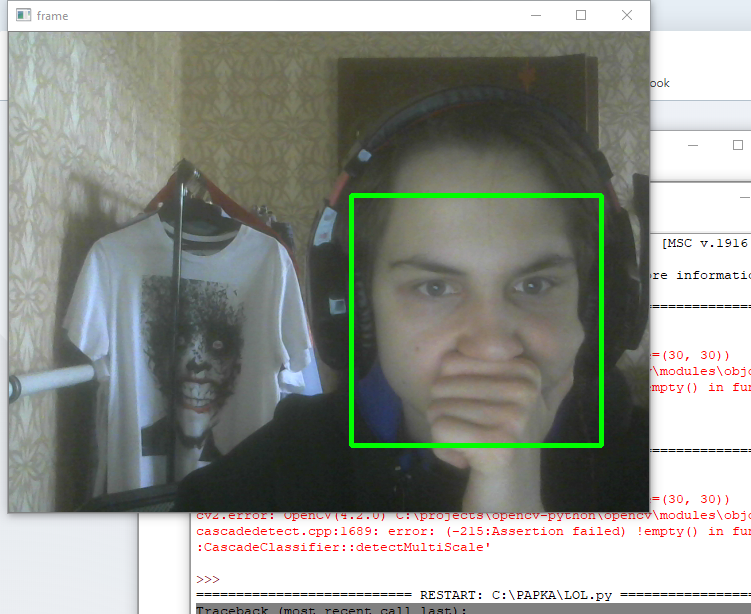
結果の出力を別の関数に移動します。認識がどのように機能するかを確認するためだけに必要です。
import cv2
import os
from mtcnn.mtcnn import MTCNN


def show_face_frame():
    if faces:
        bounding_box = faces[0]['box']
        keypoints = faces[0]['keypoints']
        cv2.rectangle(img,
                      (bounding_box[0], bounding_box[1]),
                      (bounding_box[0] + bounding_box[2],
                      bounding_box[1] + bounding_box[3]),
                      (0, 0, 255),
                      2)
        cv2.circle(img, (keypoints['left_eye']), 3, (0, 0, 255), 2)
        cv2.circle(img, (keypoints['right_eye']), 2, (0, 0, 255), 2)
        cv2.circle(img, (keypoints['nose']), 3, (0, 0, 255), 2)
        cv2.circle(img, (keypoints['mouth_left']), 3, (0, 0, 255), 2)
        cv2.circle(img, (keypoints['mouth_right']), 3, (0, 0, 255), 2)
    cv2.imshow('frame', img)

cap = cv2.VideoCapture(0)
detector = MTCNN()

while cap.isOpened():
        _, img = cap.read()
        img = cv2.cvtColor(img, cv2.COLOR_BGR2RGB)
        faces = detector.detect_faces(img)
        show_face_frame()
        cv2.waitKey(300)

cap.release()
cv2.destroyAllWindows()
プロセッサをロードしないように、 大きな遅延cv2.waitKey(300)。1秒あたり3〜4フレームを処理すると、i3-8145Uに平均15%の負荷がかかります。
時間を数える
次の場合、プログラムはログに書き込まないでください。
- コンピューターの前に5秒間座って、何かをしました。
- コーヒーを注いだり、足を伸ばしたりするために出かけました。
これらの問題を解決するために、プログラムは2つのストップウォッチtime_here(顔がフレーム内にあるときの時間をカウントダウン)とtime_not_here(顔がないとき)を使用します。ログエントリが作成されると、両方のストップウォッチがリセットされます。さらに、time_not_hereは、フレームに顔が表示されるたびにリセットされます。min_time_here
変数は、コンピューターで費やされた最小時間を示します。その後、ログに書き込む価値があります。記録は、min_time_not_hereで指定された時間よりも長い時間コンピューターから注意をそらされた後に行われます。
以下のコードでは、コンピューターで5分以上過ごした場合にエントリが作成されます。プログラムは、私が2分未満気を取られているという事実を考慮しません。
import cv2
import time
import os
from mtcnn.mtcnn import MTCNN

cap = cv2.VideoCapture(0)
path = os.path.abspath(__file__)[:-11]  #

here, not_here = 0, 0  #
time_here, time_not_here = 0, 0  #
switch = True  #
min_time_here = 300  #     ,     ( )
min_time_not_here = 120  #          ( )

detector = MTCNN()

try:
    while cap.isOpened():
        _, img = cap.read()
        img = cv2.cvtColor(img, cv2.COLOR_BGR2RGB)
        faces = detector.detect_faces(img)
       show_face_frame()
       audio_message(path, here)

        if faces and switch:
            not_here = 0
            switch = False
            if here == 0:
                here = time.time()
                print('     ' + time.strftime("%H:%M:%S", time.localtime(here)))
        elif not faces and not switch:
            not_here = time.time()
            switch = True

        if not_here != 0:
            time_not_here = time.time() - not_here
        if here != 0 and not switch:
            time_here = time.time() - here

        if time_here > min_time_here and time_not_here > min_time_not_here:  #        min_time_here
            write_excel(path, here)
            print('    ' + time.strftime('%H:%M:%S', time.gmtime(time.time() - here)))
            time_here, time_not_here = 0, 0
            here, not_here = 0, 0
        elif time_not_here > min_time_not_here and  time_here < min_time_here:  #      min_time_here,
            print('  ')
            time_here, time_not_here = 0, 0
            here, not_here = 0, 0

        cv2.waitKey(300)
except KeyboardInterrupt:
    if time_here > min_time_here:  #        min_time_here
        write_excel(path, here)
    cap.release()
    cv2.destroyAllWindows()
ユーザーがコンピューターの電源を切りたい場合は、最初にプログラムを中断する必要があり(ctrl + c)、現在の作業の時刻がログに記録されます。これには例外ハンドラーが使用されます。
ドキュメントに優れたデータの書き込み
excelを使用するには、データの読み取りと書き込みを同時に行う素晴らしいopenpyxlライブラリが役立ちます。
プログラムは毎日、現在の日付で新しいシートを作成します。
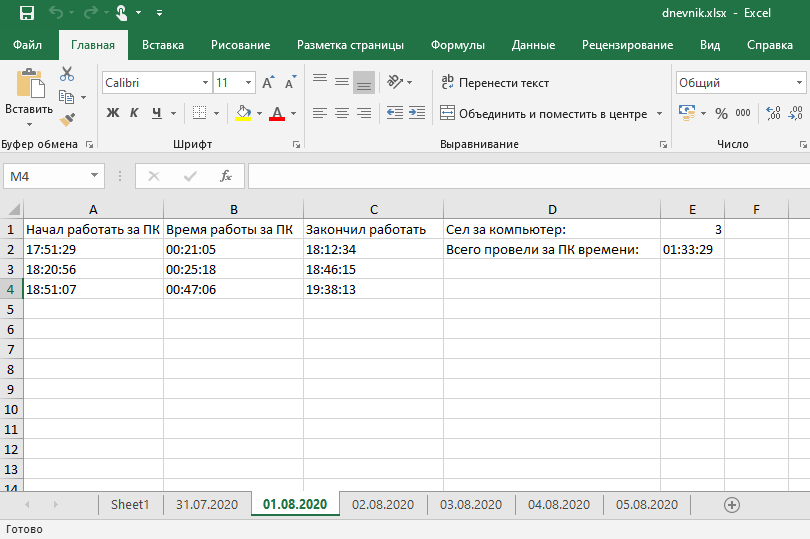
1枚のシートに毎日の情報が記録され、その日にコンピュータで費やされた時間。write_excel
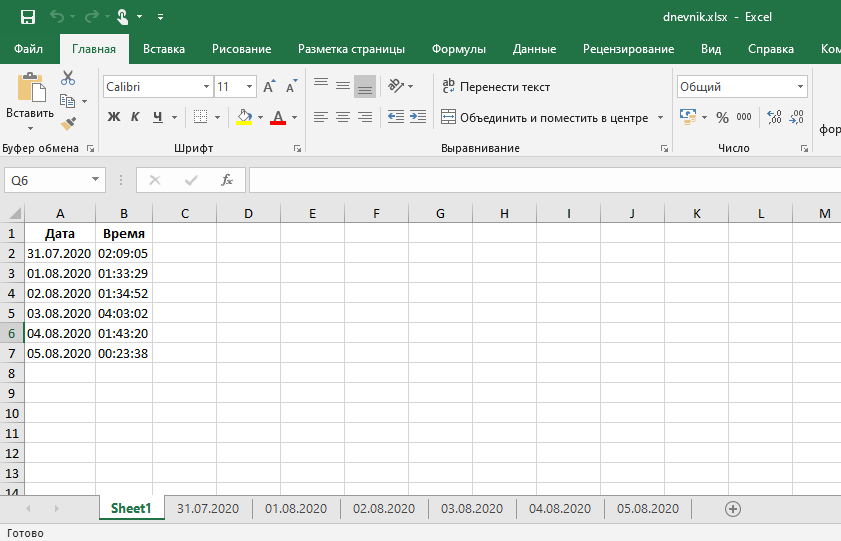
関数は、ドキュメントを開き、データを書き込み、すぐに閉じます。 ユーザーが既に開いている場合は、openpyxlを使用してドキュメントを変更することはできません。この場合の例外が追加されました。
def write_excel(path_excel, time_start):
    wb = openpyxl.load_workbook(path_excel + r'\dnevnik.xlsx')
    today = time.strftime("%d.%m.%Y", time.localtime(time.time()))
    if today not in wb.sheetnames:  #        ,
        wb.create_sheet(title=today)
        sheet = wb[today]
        sheet.column_dimensions['A'].width = 20
        sheet.column_dimensions['B'].width = 20
        sheet.column_dimensions['C'].width = 20
        sheet.column_dimensions['D'].width = 31
        sheet['A1'] = '   '
        sheet['B1'] = '   '
        sheet['C1'] = ' '
        sheet['D1'] = '  :'
        sheet['D2'] = '    :'
        sheet = wb[today]
        row = 2
        all_time = 0
    else:  #
        sheet = wb[today]
        row = sheet['E1'].value  #    excel
        all_time = sheet['E2'].value  #
        all_time = all_time.split(':')
        all_time = int(all_time[0]) * 3600 + int(all_time[1]) * 60 + int(all_time[2])  #
        row = row + 2  #

    sheet['A' + str(row)] = time.strftime("%H:%M:%S", time.localtime(time_start))  #
    sheet['C' + str(row)] = time.strftime("%H:%M:%S", time.localtime(time.time()))  #   -
    seconds = time.time() - time_start  #
    sheet['B' + str(row)] = time.strftime('%H:%M:%S', time.gmtime(seconds))
    sheet['E1'] = row - 1  #
    all_time = all_time + seconds
    all_time = time.strftime('%H:%M:%S', time.gmtime(all_time))
    sheet['E2'] = all_time
    #
    sheet_0 = wb.worksheets[0]
    sheet_0['A' + str(len(wb.sheetnames))] = today
    sheet_0['B' + str(len(wb.sheetnames))] = all_time
    while True:  #
        try:
            wb.save(path_excel + r'\dnevnik.xlsx')
        except PermissionError:
            input('  excel     enter')
        else:
            break
サウンドアラート
変更のために、1時間の作業後にランダムに実行されるスピーチシンセサイザーを使用して8つのオーディオファイルを生成しました。休憩するまで、音声アラートが繰り返されることはありません。
def audio_message(path, here):
    if here == 0:
        pass
    elif time.strftime('%H:%M:%S', time.gmtime(time.time()-here)) == "01:00:00":
        wav = random.choice(os.listdir(path + r'\audio'))
        winsound.PlaySound(path + r'\audio\\' + wav, winsound.SND_FILENAME)
PCの電源を入れたときの起動スクリプト
プログラムをWindowsと一緒にロードするために、pythonスクリプトを実行するバッチファイルを作成できます。バッチファイルは次のディレクトリに配置する必要があります
。C:\ Users \%username%\ AppData \ Roaming \ Microsoft \ Windows \ Start Menu \ Programs \ Startup
バッチファイルとソースファイルは異なるディレクトリに保存されているため、os.getcwd( )バッチファイルへのパスを返すため。私たちは、使用しているos.path.abspath(__ファイルを__): - 11]
UPD: ak545より良いオプションos.path.dirname(os.path.abspath(__ file__))を提案しました
将来は
コンピューターの前に座っているすべての人ではなく、自分の顔に合わせてプログラムを作成したかったのです。このために、顔認識が可能なFaceNetが使用されます。
醜い黒いコンソールの代わりに美しいウィジェットを開発する計画もあります。これにより、コンピューターの電源を切ると、割り込みを使用せずに自動的に記録が行われます。
清聴ありがとうございました。質問がある場合は、コメントまたはhttps://www.linkedin.com/in/evg-voronov/に書き込んでください。